

Access the Control Center
Message Notification Center
Section titled “Message Notification Center”Tap on the desktop notification center to view message notifications. Note: You need to turn on the app notification switch.
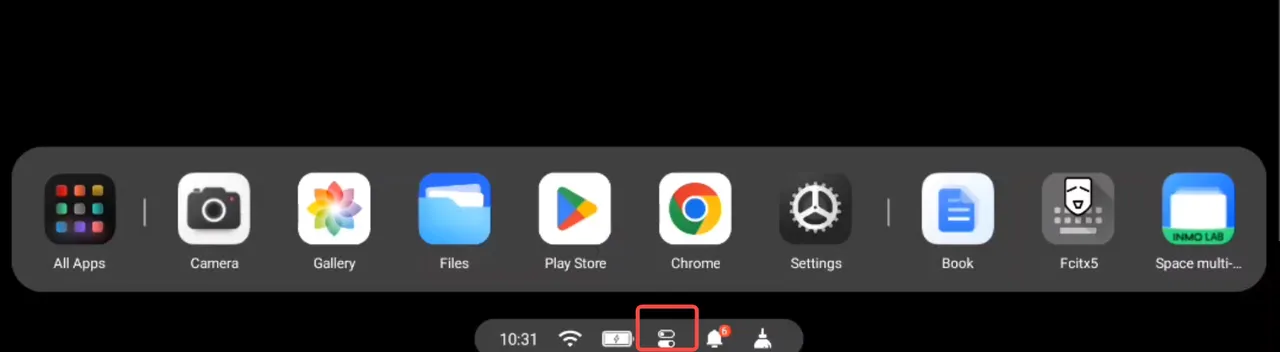
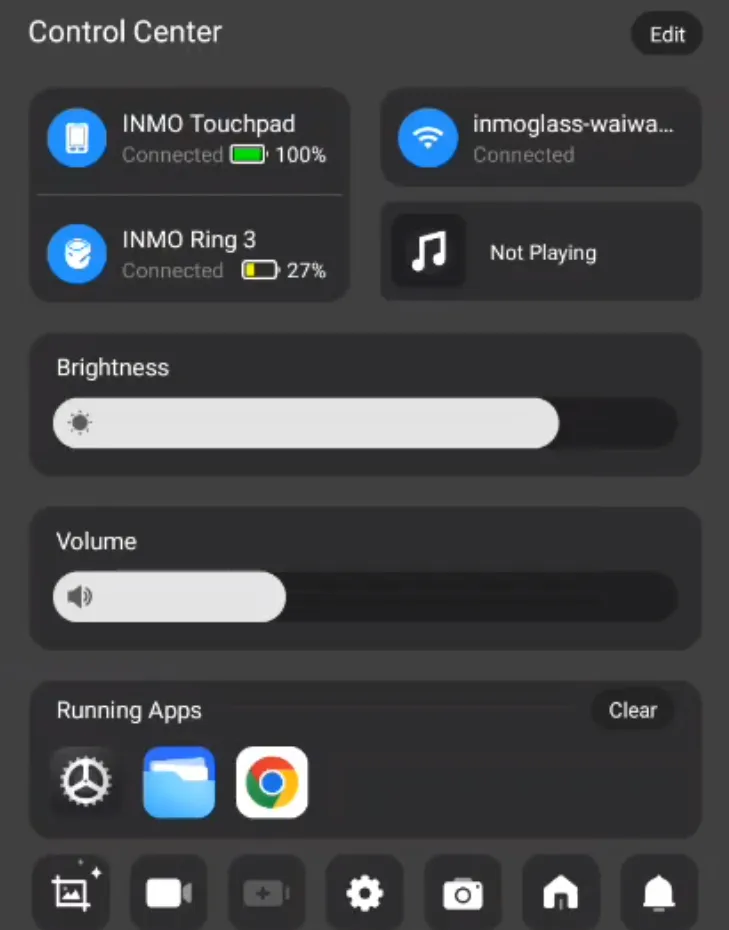
Understanding the Icons in Your Control Center
Section titled “Understanding the Icons in Your Control Center”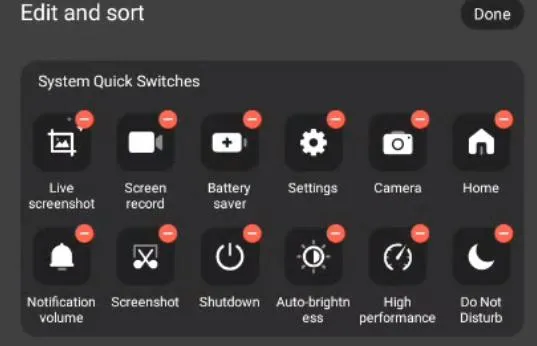
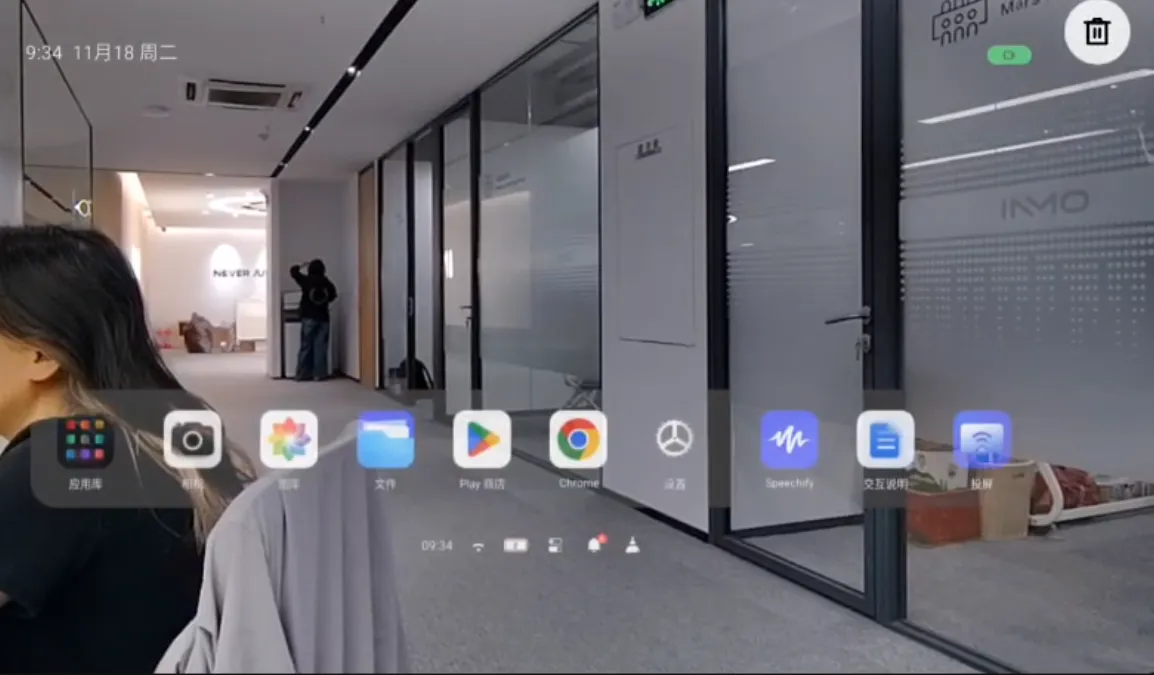
- Live Screenshot: Captures both the view inside the glasses and the external real-world scene simultaneously, perfect for recording memorable moments.
For example:
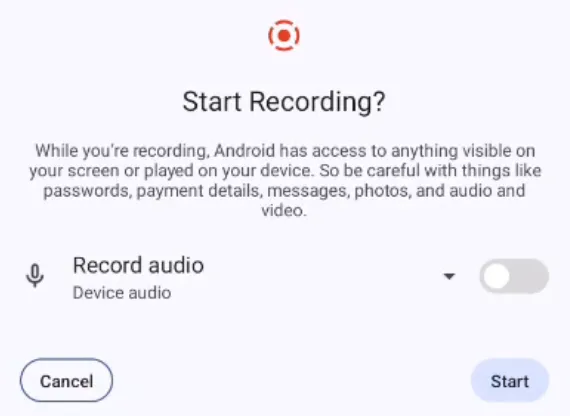
- Screen record: Records the content displayed within the glasses, ideal for sharing or tutorials.
-
Settings: Quickly access system settings to adjust various parameters and personalize your INMO Air3.
-
Camera: Launch the camera application to take photos or record videos instantly.
-
Home: Return to the device’s home screen with a single tap.
-
Notification volume: Toggle notification sounds ON or OFF.
-
Screenshot: Capture an image of the current screen.
-
Shutdown: Safely power off your INMO Air3 device.
-
Auto brightness: When enabled, the device intelligently adjusts screen brightness based on ambient light conditions.
-
Battery saver: Activate to optimize system performance and effectively extend battery life.
-
High-performance: When enabled, the system operates at a higher performance level, suitable for demanding applications or complex tasks like gaming or watching high-definition videos.
-
Do Not Disturb: Activate to silence notifications and calls, allowing for uninterrupted focus.
Background App Whitelist Mode
Section titled “Background App Whitelist Mode”You can add specific applications to a whitelist. Even if you perform a one-tap cache clear, whitelisted apps will not be cleared and will continue to run in the background.
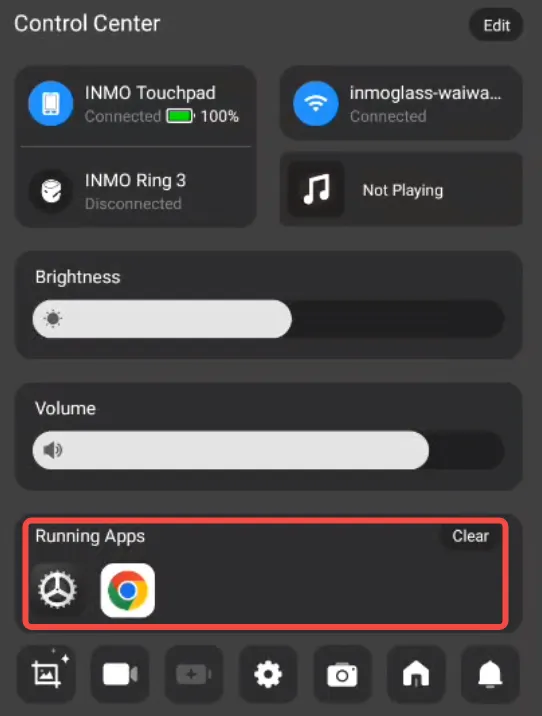
Steps to add apps to the Whitelist Mode:
-
Navigate to Glasses Settings (Settings).
-
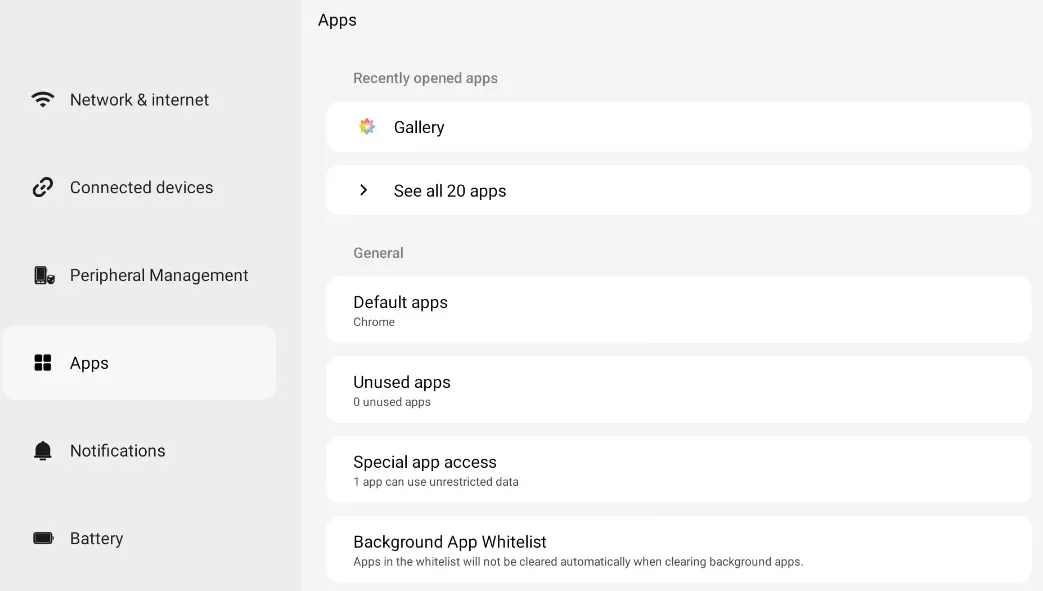
Select the APPs option.
-
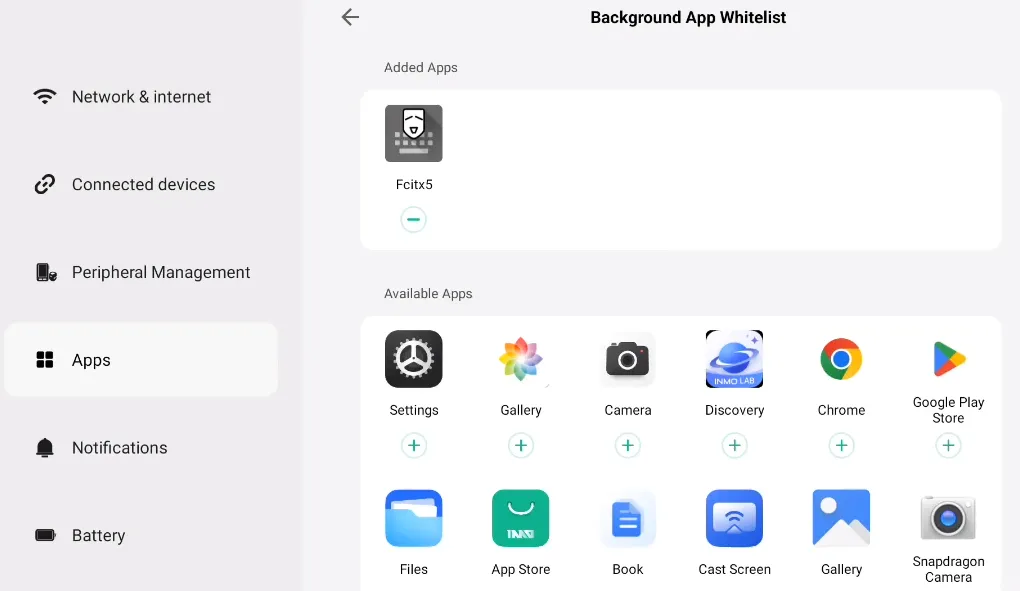
Tap Background App Whitelist.
-
From this screen, you can select the applications you wish to add to the whitelist, preventing them from being cleared by one-tap or automatic background cleanup.