

Casting Air3 Glasses to PC (Mac)
Part 1 Open Your INMO Air3 Glasses
Section titled “Part 1 Open Your INMO Air3 Glasses”① Launch the Mirror App: Open the “Mirror” application on your INMO Air3 glasses.
② Stay on Interface: Ensure the Mirror app remains open and active on this screen.

Part 2 Initiate Screen Mirroring from Mac
Section titled “Part 2 Initiate Screen Mirroring from Mac”① Access Control Center: On your Mac, click the Control Center icon.
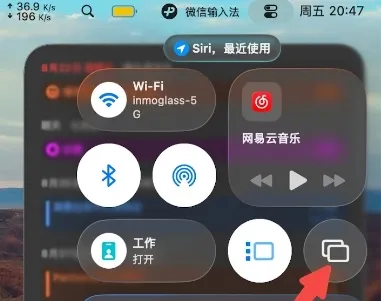
② Select Screen Mirroring: Within the Control Center, click on “Screen Mirroring.”
③ Choose INMO Air3: From the list of available devices, select “INMO Air3.”
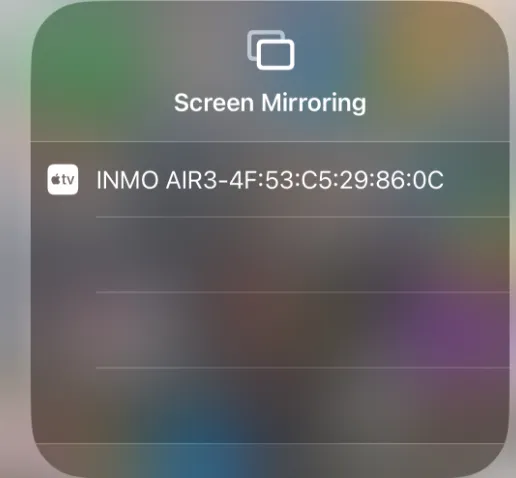
④ Choose Display Option (Optional): You may be prompted to choose how you want the screen to be displayed. Select your preferred option.
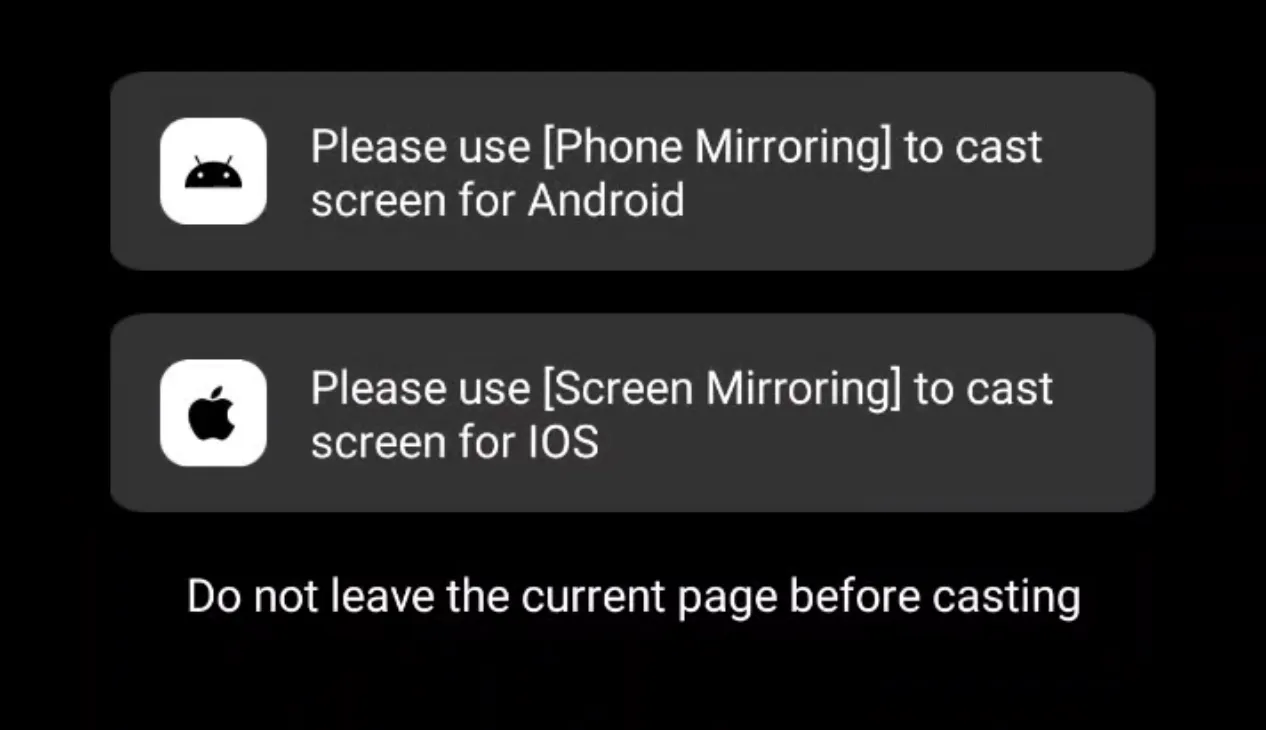
⑤ View Mirroring: After your selection, you will see your Mac’s screen mirrored on your INMO Air3 glasses.
Part 3 Troubleshooting Connection
Section titled “Part 3 Troubleshooting Connection”Notes (If INMO Air3 does not appear or mirroring fails to initiate):
① Check INMO Air3’s Mirror App:
* Verify that the “Mirror” app on your INMO Air3 glasses is still open and active.
② Restart Mac’s Screen Mirroring Process:
* Completely close the Control Center on your Mac.
* Reopen Control Center and retry selecting “Screen Mirroring.”
③ Restart INMO Air3 Glasses:
* If issues persist, try restarting your INMO Air3 glasses and then repeat “Part 1” and “Part 2.”
④ Check Wi-Fi/Bluetooth:
* Ensure both your Mac and INMO Air3 are connected to the same Wi-Fi network and/或 Bluetooth is enabled on both devices.